


Most office ergonomics problems are not equipment problems. They are setup problems.
Across Australian workplaces, employees are sitting in ergonomic chairs that have never been adjusted to fit them, at desks at the wrong height, looking at monitors that pull the neck forward for eight hours a day. The equipment may be perfectly adequate. The setup is not.
A structured workstation review does not need to be a major project. For most teams, the process takes thirty to sixty minutes per person, most of the fixes cost nothing, and the improvement in daily comfort and focus is immediate.
This checklist is written for office managers, HR professionals, and business owners who want to run a practical ergonomics review. It covers the five areas that matter most, the most common findings, and what to do after you have the results.
Before You Start: What a Proper Review Covers
The Four Areas Every Review Should Include
A complete workstation review looks at four things together. Checking only one or two of them produces an incomplete picture, because office ergonomics risk usually comes from the combination of factors, not any single one in isolation.
1. The physical setup
This is the chair, desk height, monitor position, keyboard and mouse placement, and everything the employee physically interacts with. Most reviews start here. The mistake is stopping here.
2. The individual fit
Whether the physical setup is actually configured for the specific person using it. A chair set up correctly for someone 175cm tall will not be right for a 155cm or 190cm employee at the same workstation. Setup and individual fit are different things.
3. Work habits and posture
How the employee actually sits and moves throughout the day. Good equipment, adjusted correctly but used with poor posture habits, still produces risk. This part of the review requires observation and a brief conversation with the employee.
4. The environment
Lighting, temperature, noise, and the space around the workstation. These factors affect fatigue and concentration in ways that seating and equipment alone cannot fix.
Who Should Be Involved
Under the Work Health and Safety Act 2011, and in line with WorkSafe WA guidance, workers must be consulted during any workstation assessment. This is not just a compliance requirement. It produces better outcomes.
The employee using the workstation knows which tasks they spend most time on, where the discomfort appears first, and what they have already tried. No external review can replicate that knowledge.
A practical approach is to have each employee complete a brief self-assessment before the reviewer walks through the workstation with them. The self-assessment surfaces known issues. The walkthrough then validates and adds to those with a systematic check against ergonomic standards.
For employees with existing injuries or complex needs, an independent occupational physiotherapist assessment is worth arranging alongside the internal review.

The Office Ergonomics Checklist
Work through each section in order. The sections build on each other. A monitor at the correct height, for example, is only meaningful once the chair is set correctly, because the chair height determines where the employee's eye level is. For businesses running a full office review or sourcing chairs through an ergonomic chair wholesale programme, starting with seating across the team before touching any other workstation setting is the right sequence.
Section 1: Seating
The chair is the foundation of every other workstation adjustment. If the chair is wrong, every measurement taken after it is taken from an incorrect starting point.
Seat Height
With the employee seated and sitting back into the chair, their feet should rest flat on the floor with knees at approximately 90 degrees. The thighs should be roughly parallel to the floor, or angled very slightly downward.
If the employee cannot achieve this with feet flat, a footrest is needed. If the chair cannot raise high enough for a taller employee, the desk height also needs review.
Tip: Ask the employee to sit back fully before checking foot position. Many people sit forward on their seat, which makes the measurement look correct when it is not.
Seat Depth
With the back against the backrest, there should be a gap of two to three fingers between the front edge of the seat pan and the back of the employee's knees. If the seat is too deep, the employee will slide forward to relieve pressure, lose contact with the lumbar support, and effectively sit unsupported for the whole day.
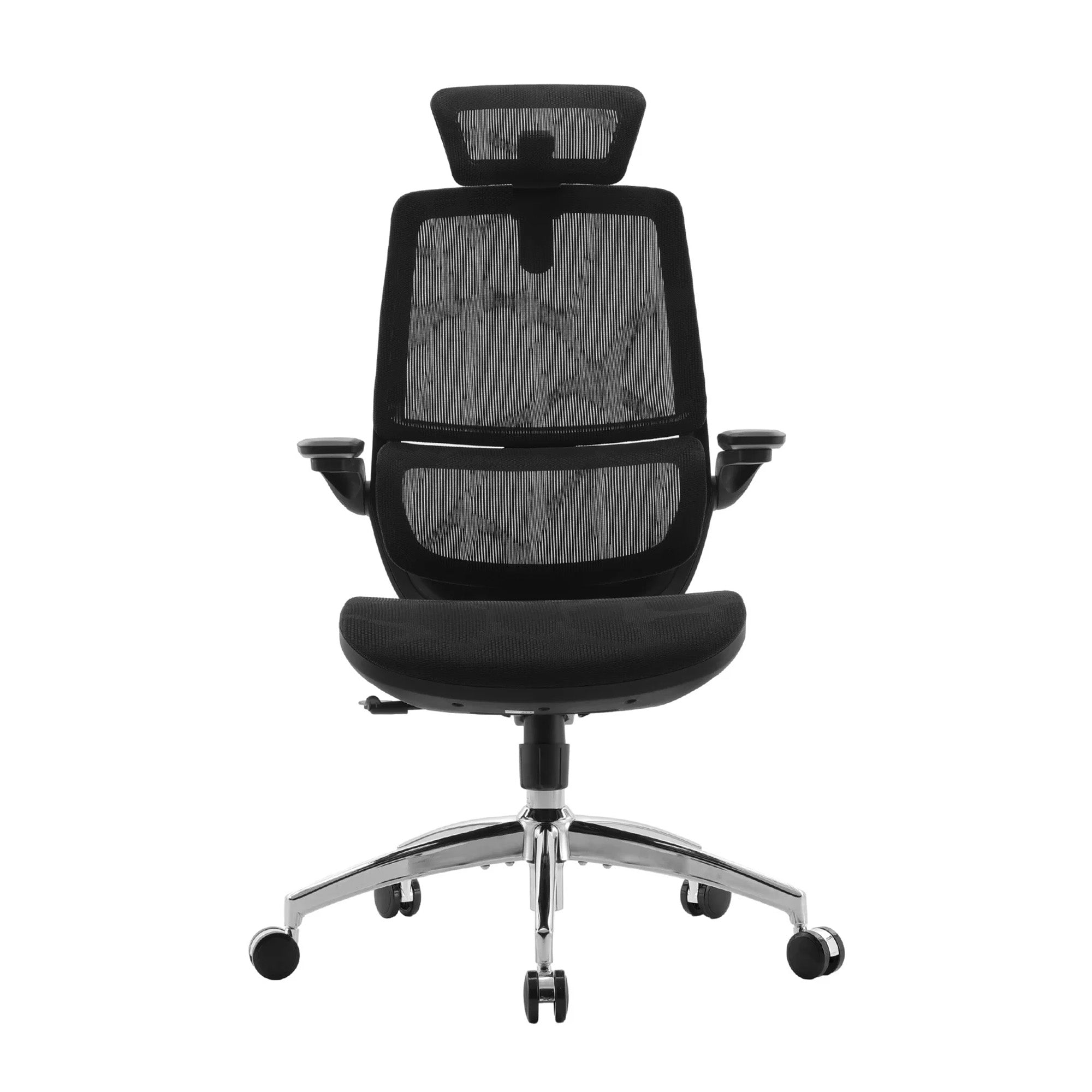
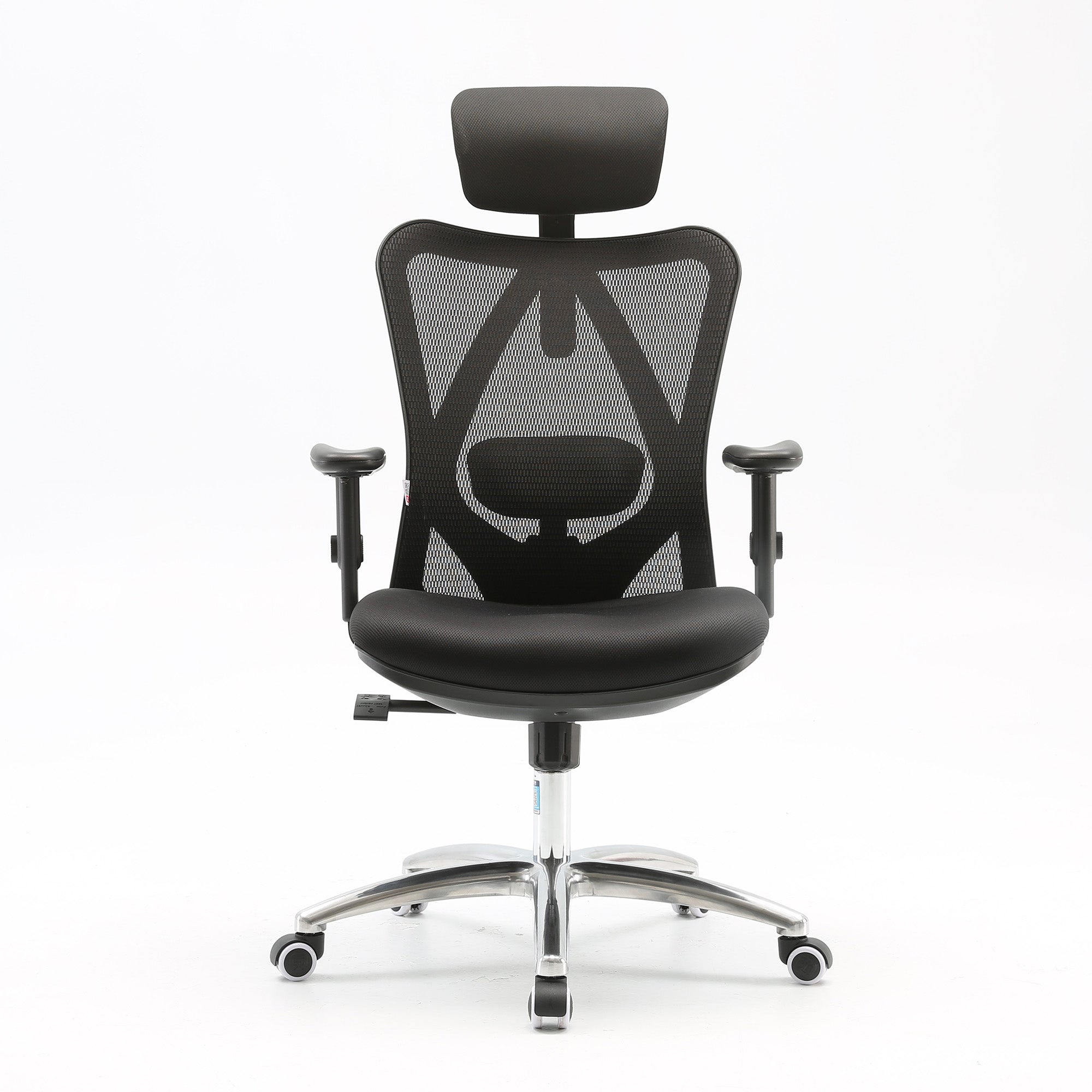
Seat depth adjustment is one of the most commonly missed settings. Not all chairs offer it. On chairs that do, such as the Sihoo V1 with its sliding seat mechanism, it makes a meaningful difference for shorter employees and those with longer legs.
Lumbar Support Position
The lumbar support should sit in the natural inward curve of the lower back, not in the mid-back or upper back. Ask the employee to sit fully back and confirm the support is contacting the right area.
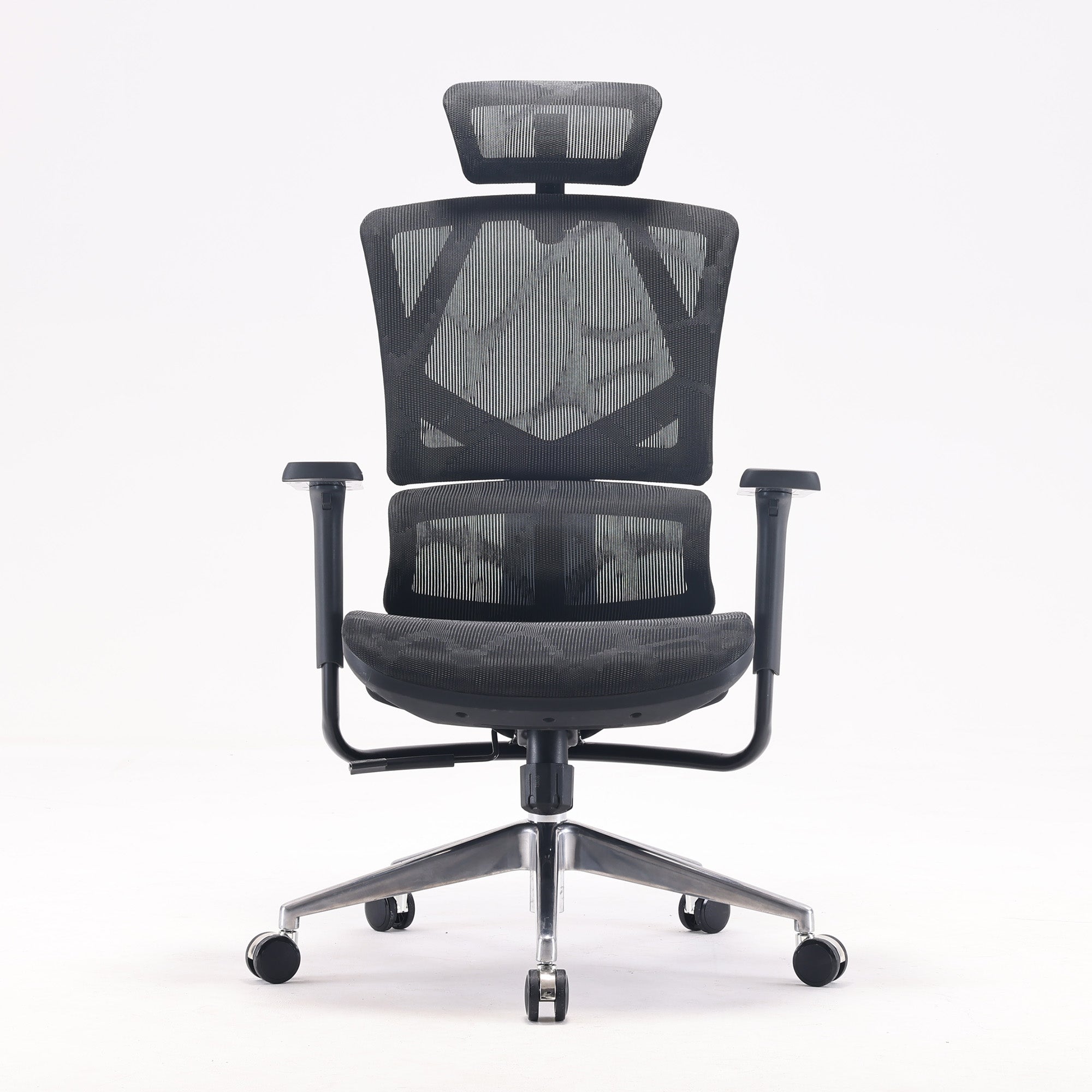
Most chairs allow the lumbar to be raised or lowered. On chairs with adaptive lumbar systems, check that the mechanism is not stuck or obstructed. The Sihoo Vito M90 uses an adaptive elastic lumbar that responds automatically to body weight and sitting angle, which removes the need for manual repositioning as posture changes throughout the day.
For a full step-by-step walkthrough of every chair adjustment in order, share the guide to properly adjusting an ergonomic chair with every employee when a new chair arrives. Most adjustment problems come from chairs that were never set up correctly in the first place.
Backrest Angle
A slight recline of 100 to 110 degrees is more supportive than sitting rigidly at 90 degrees. A fully upright posture creates more spinal compression than a gentle recline. The tilt tension should be set so the backrest responds to the employee's body weight without requiring significant effort to lean back.
Armrest Height and Position
The armrests should support the forearms with the shoulders completely relaxed and elbows close to the body. If the armrests are too high, they push the shoulders upward and load the trapezius muscles continuously. If they are too low, the employee loses support and the arms hang unsupported.
Armrests that cannot be positioned correctly for the individual should be removed entirely. An armrest that forces the shoulders upward causes more harm than no armrest at all.
Chair Stability and Condition
Check that the base is stable, all five castors are present and rolling freely, and the height adjustment holds its position without drifting. A chair that slowly sinks during the day changes the entire ergonomic setup without the employee realising it.
Also check the mesh or cushioning for significant wear. A seat that has compressed substantially no longer provides the support it was designed for, regardless of how well the chair is adjusted.
Australian Standard Reference
For any commercial office environment, chairs should meet AS/NZS 4438, the Australian and New Zealand standard for height-adjustable swivel chairs. For high-use or shared-chair environments, AFRDI Level 6 certification is the relevant higher benchmark.
Section 2: Desk and Monitor Setup
Monitor positioning is one of the most significant contributors to neck and shoulder strain in office workers and one of the most consistently incorrect elements in a standard workplace setup.
Desk Height
With the chair correctly adjusted, the desk surface should allow the employee to rest their forearms on it with elbows at approximately 90 degrees and shoulders relaxed. If the desk is fixed height and too high or too low, the chair needs to be adjusted to meet it, and a footrest provided if the feet can no longer reach the floor.
Monitor Height
The top of the monitor should be at or very slightly below the employee's eye level when seated in their normal working position. Looking at the screen should require a very slight downward gaze, not an upward one.
A monitor that is too high is worse for the neck than one that is slightly too low. When the screen is too high, the employee holds their head in a tilted-back position for hours at a stretch. The average human head weighs 4.5 to 5.5 kilograms. Each degree of backward tilt multiplies the effective load on the neck and shoulder muscles significantly.
If the monitor is sitting on a flat desk surface and is too low, a monitor riser, arm, or stand is needed. A stack of books is a reasonable short-term fix, but not a long-term solution.
Monitor Distance
The screen should be approximately arm's length away, roughly 50 to 70 centimetres for most people. The employee should be able to extend their arm and touch the screen with their fingertips without leaning forward. If the employee is squinting or leaning in to read, the distance is too great or the text size needs increasing.
Monitor Angle and Glare
A slight backward tilt of 10 to 20 degrees reduces glare and supports a natural downward gaze. Check the screen for visible reflections from windows or overhead lights. If glare cannot be addressed by repositioning, an anti-glare filter is a practical low-cost fix.
Monitors should be positioned at a right angle to windows, not facing toward them or with a window directly behind them.
Dual Monitor Setup
If the employee uses two monitors equally, both should be centred in front of them at the same height and angled slightly inward. If one is the primary screen and the other is used occasionally, the primary should be directly in front with the secondary off to one side.
Requiring an employee to turn their head repeatedly to view a frequently used screen is a sustained neck load that accumulates across a full working day.
Laptop Use
A laptop used flat on a desk places both the screen and keyboard at the wrong height simultaneously. For any laptop use beyond thirty minutes at a stretch, an external keyboard and mouse should be used alongside a laptop stand or monitor arm. This is the single most impactful upgrade for employees working on laptops at a fixed desk.

Section 3: Keyboard, Mouse, and Accessories
Keyboard and mouse positioning affects the wrists, forearms, shoulders, and neck. These are among the most common sites of repetitive strain injury in desk-based workers.
Keyboard Placement
The keyboard should be placed directly in front of the employee. Wrists should be straight and neutral during typing, not bent upward or downward. Elbows should be close to the body at approximately 90 degrees, not reaching forward to an out-of-reach keyboard.
Keyboard Angle
The keyboard should be flat, or angled very slightly downward away from the employee. The raised legs on the back of most keyboards should not be deployed. They tilt the keyboard upward and force the wrists into extension during typing, which is a significant repetitive strain risk across a full workday.
Mouse Positioning
The mouse should be as close to the keyboard as possible, on the same surface at the same height. Placing the mouse too far to the side requires the shoulder to abduct continuously, loading the shoulder and neck muscles across every hour of computer use.
If the keyboard has a number pad that pushes the mouse out to the right, consider a compact keyboard without the number pad. This is a low-cost change with an immediate benefit for employees who use the mouse heavily.
Wrist Rests
Wrist rests should be used during pauses in typing, not while actively typing. Using a wrist rest during typing compresses the carpal tunnel and increases injury risk rather than reducing it. This is a widely misunderstood point worth clarifying with staff.
Document Holder
For employees who regularly refer to printed documents while typing, a document holder positioned between the keyboard and monitor eliminates the need to repeatedly look down at flat paper on the desk. This is a simple, inexpensive accessory that removes a significant source of neck rotation load for data entry and administrative roles.
Section 4: Lighting and Environment
Environmental factors are consistently underweighted in office ergonomics reviews. They have a direct effect on fatigue, eye strain, and concentration that no amount of chair adjustment can compensate for.
General Lighting Level
Office lighting should be sufficient for the tasks being performed without creating glare on screens or harsh shadows on work surfaces. AS/NZS 1680 is the relevant Australian standard for interior workplace lighting. Most general office tasks require approximately 320 to 400 lux at the work surface.
Task Lighting
Where general lighting is insufficient for close work such as reading printed materials, a desk lamp positioned to illuminate the document without creating screen glare is appropriate. The lamp should not sit in the employee's direct line of sight.
Natural Light
Natural light improves mood and alertness but creates significant glare on screens when workstations face toward windows or have a window directly behind the screen. Desks should be oriented so windows are to the side of the employee wherever the layout allows.
Temperature
Office temperatures between 20 and 26 degrees Celsius are generally appropriate for desk-based work. Cold environments cause employees to hunch their shoulders and adopt protective postures that increase musculoskeletal load throughout the day, often without the employee noticing the connection between the temperature and their discomfort.
Noise
Sustained background noise at levels requiring the employee to mentally filter it out contributes to cognitive fatigue even when the noise level is not high enough to create a hearing risk. In open-plan offices, acoustic panels, noise-cancelling headphones, and designated quiet areas are practical controls worth including in any ergonomics review.
Section 5: Movement and Breaks
No ergonomic setup, however well configured, eliminates the risk from sustained static posture. Movement is a required part of a healthy workday, not an optional addition.
Postural Variety
Employees should change their seated posture regularly. WorkSafe WA recommends a mix of seated and standing tasks, and advises against sitting or standing in a single position for extended periods. A practical target is to change posture or stand briefly at least once every 30 to 45 minutes.
The 20-20-20 Rule
Every 20 minutes, look at something at least 20 feet away for at least 20 seconds. This allows the eye muscles used to hold screen focus to relax and reduces the cumulative eye strain that contributes to headaches and afternoon fatigue. Monash University includes this as a standard recommendation in their office ergonomics guidelines.
Micro-Breaks
Brief pauses of two to three minutes per hour to stand, stretch, or walk briefly reduce sustained muscle load and help maintain circulation. These are different from formal rest breaks and can be integrated naturally into normal work activities: going to a printer, taking a call standing, or walking to speak with a colleague instead of sending a message.
Sit-Stand Workstations
Where employees have sit-stand desks available, they should be encouraged to alternate between positions throughout the day. A reasonable starting target is 15 to 30 minutes of standing per hour. Standing for the entire day is not the goal and introduces its own fatigue and vascular load if sustained.

Common Findings and How to Fix Them
These four issues come up in almost every office ergonomics review. They are worth checking first, before anything else, because fixing them often resolves the majority of the discomfort employees are experiencing.
Chair Never Adjusted to the Individual
This is the most frequent finding by a wide margin. In many cases, the chair has not been adjusted from the factory default since it arrived. The fix is to work through the five seat adjustments with the employee sitting in their normal working position: height, depth, lumbar, recline, and armrests.
If the chair cannot be adjusted to fit the employee, the chair needs to be replaced. A chair that does not reach the correct height for a tall employee, or whose lumbar support is fixed in the wrong position, cannot be improved by any amount of adjustment.
For a full adjustment walkthrough to use with new starters or during a review, see how to properly adjust your ergonomic chair.
Monitor Positioned Too High
A monitor too high is more common and more harmful than one too low. When the screen is above eye level, the employee holds their head in a tilted-back position for hours. The head is heavy. That backward tilt loads the neck and upper back muscles continuously in a way that usually shows up as end-of-day tension or headaches, not immediate pain.
The common cause is monitors placed on top of desktop computer towers, docking stations stacked under the screen, or non-adjustable risers from a previous setup. The fix is to lower the monitor until the top of the screen is at or just below eye level. A monitor arm is the most flexible long-term solution.
Armrests Pushing Shoulders Up
Armrests set too high push the shoulders into a slightly elevated position that loads the trapezius muscles all day. This is a very common source of upper back and neck tension that most employees do not identify as coming from their armrests because the connection is not obvious to them.
Lower the armrests until the shoulders are completely relaxed and the forearms rest lightly on the pads without the arms being propped up. If the armrests cannot be lowered far enough, remove them. An armrest forcing the shoulders upward does more harm than no armrest at all.
Keyboard and Mouse Too Far Away
Placing the keyboard and mouse at a distance that requires reaching forward loads the shoulders and neck muscles throughout every typing session. The fix is to bring both devices as close to the body as the desk allows, with elbows at roughly 90 degrees and upper arms close to the torso.
In many workstations this is a desk-space problem. Employees fill the space in front of them with items that push the keyboard back toward the monitor. Clearing the desk of anything not in active use, and moving the keyboard forward, is the immediate fix.
Are the Chairs Themselves the Problem?
When Adjustment Is Not Enough
Most workstation problems can be resolved through adjustment alone, without replacing equipment. But there are situations where the chair itself is the limiting factor. If the height range does not cover the employee's leg length, if the lumbar support is fixed at the wrong position for their spine, or if the chair is worn to the point where the cushioning or mesh no longer provides meaningful support, adjustment will not be enough.
A few practical markers suggest it is time to replace rather than adjust. The tilt mechanism no longer holds a position, the seat has compressed noticeably compared to when the chair was new, or the employee reports that the chair feels worse at the end of the year than it did at the start.
For a guide to what to look for across different price points and use cases, the best office chairs for long hours of sitting covers the key features that matter for extended daily use.
What Australian Businesses Are Choosing
Sihoo Australia has seen a significant rise in bulk orders from businesses in recent months, with larger companies ordering multiple chairs at once for office fit-outs, team expansions, and scheduled equipment upgrades. This reflects a growing recognition among Australian employers that ergonomic seating is not a workplace perk but a standard operational requirement.
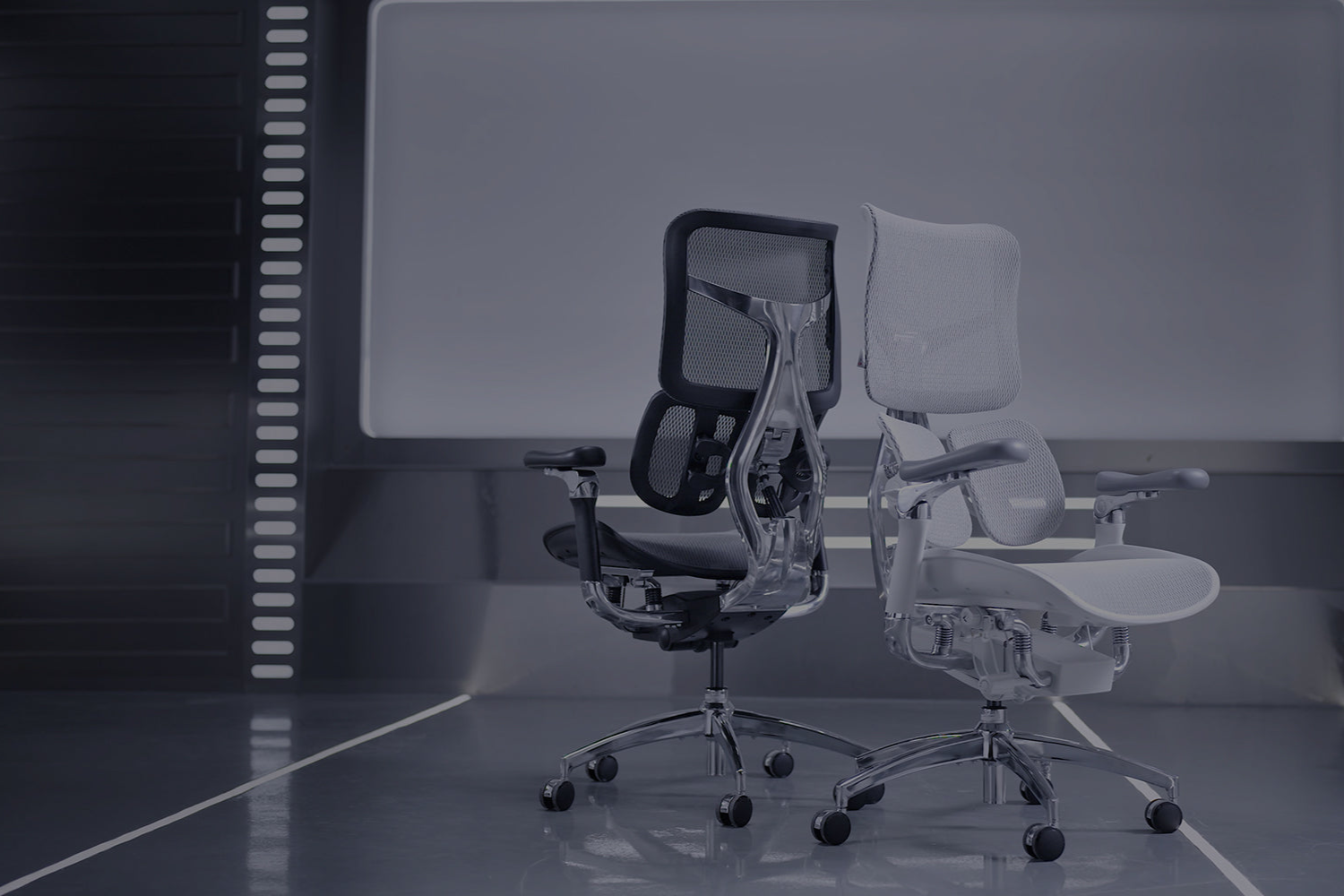
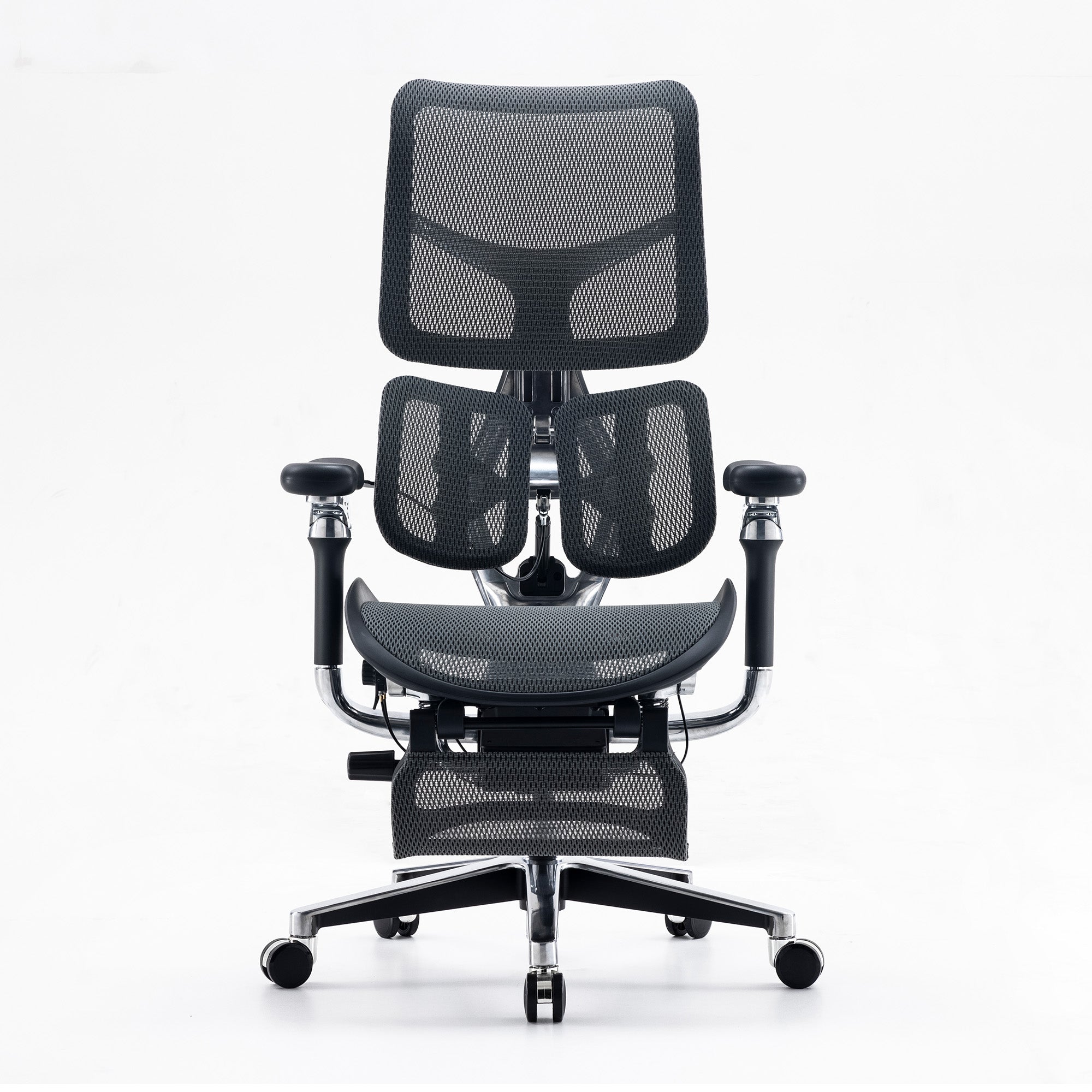
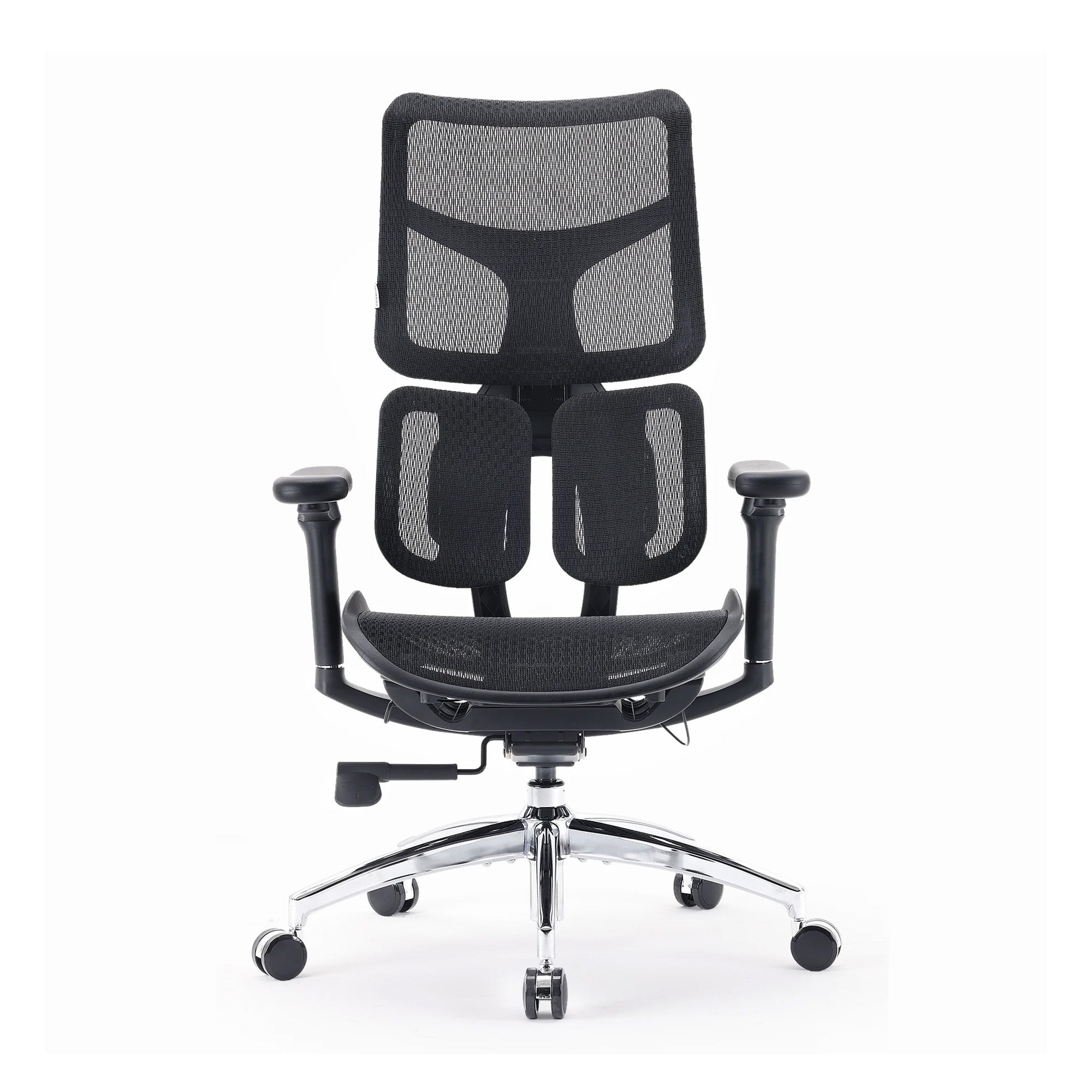
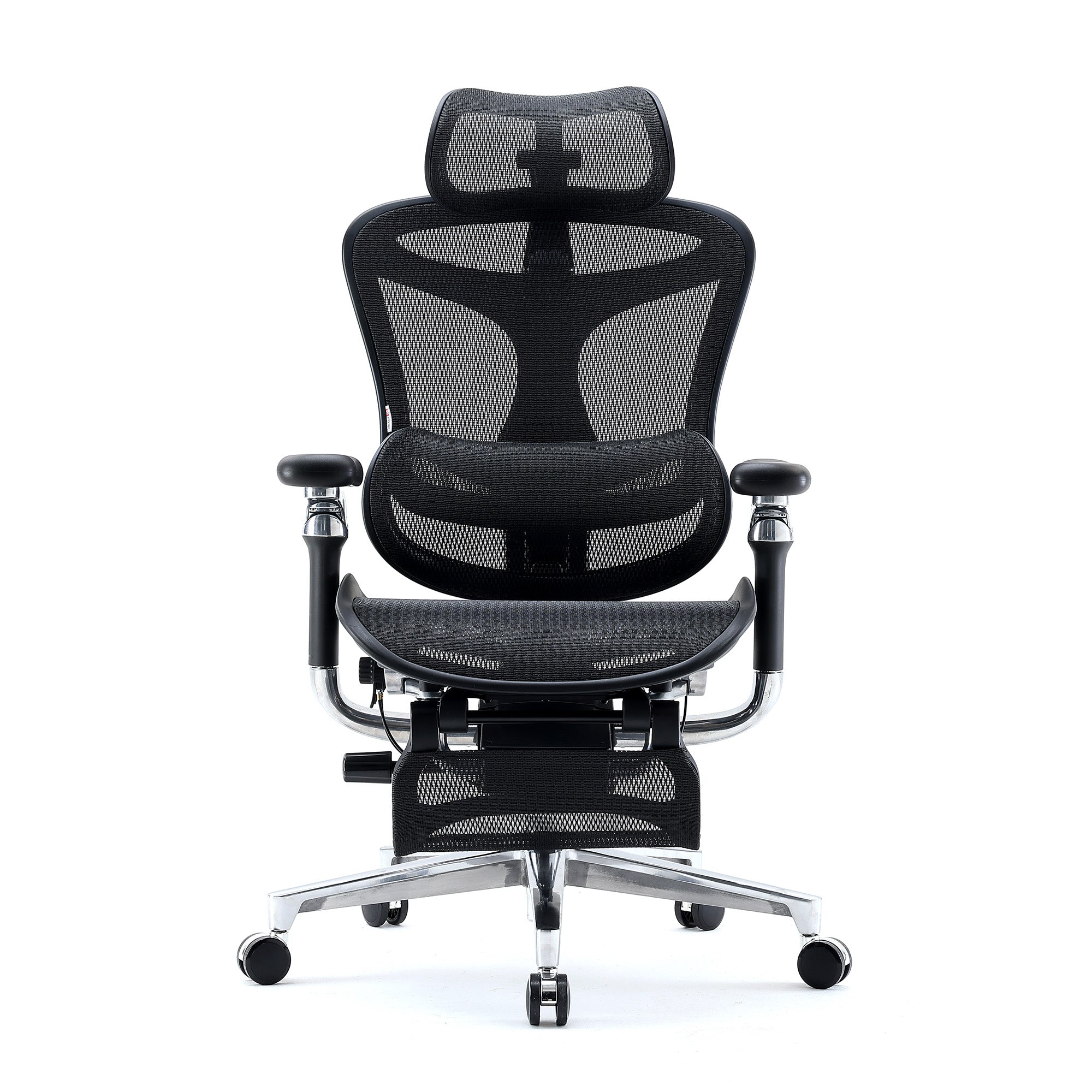
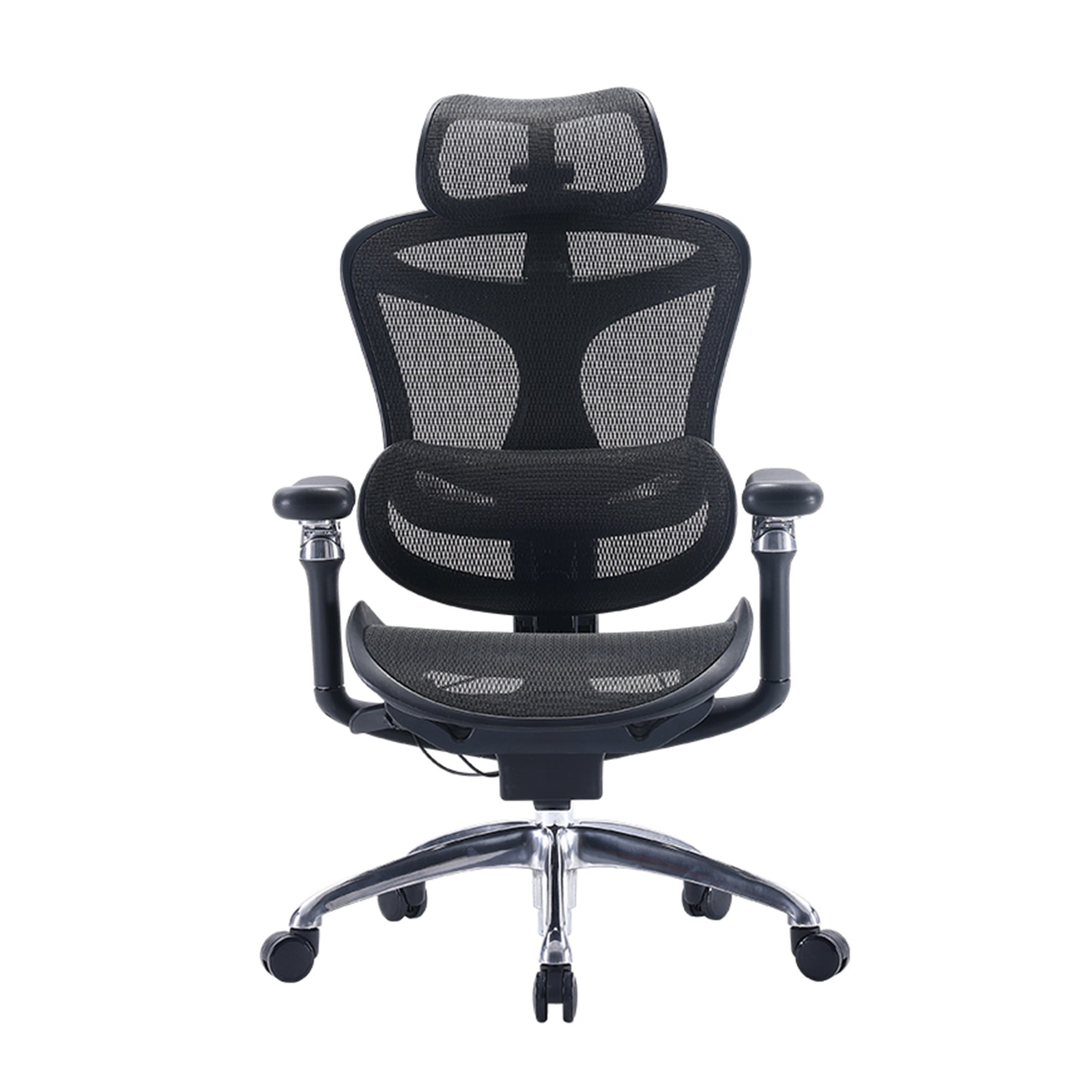
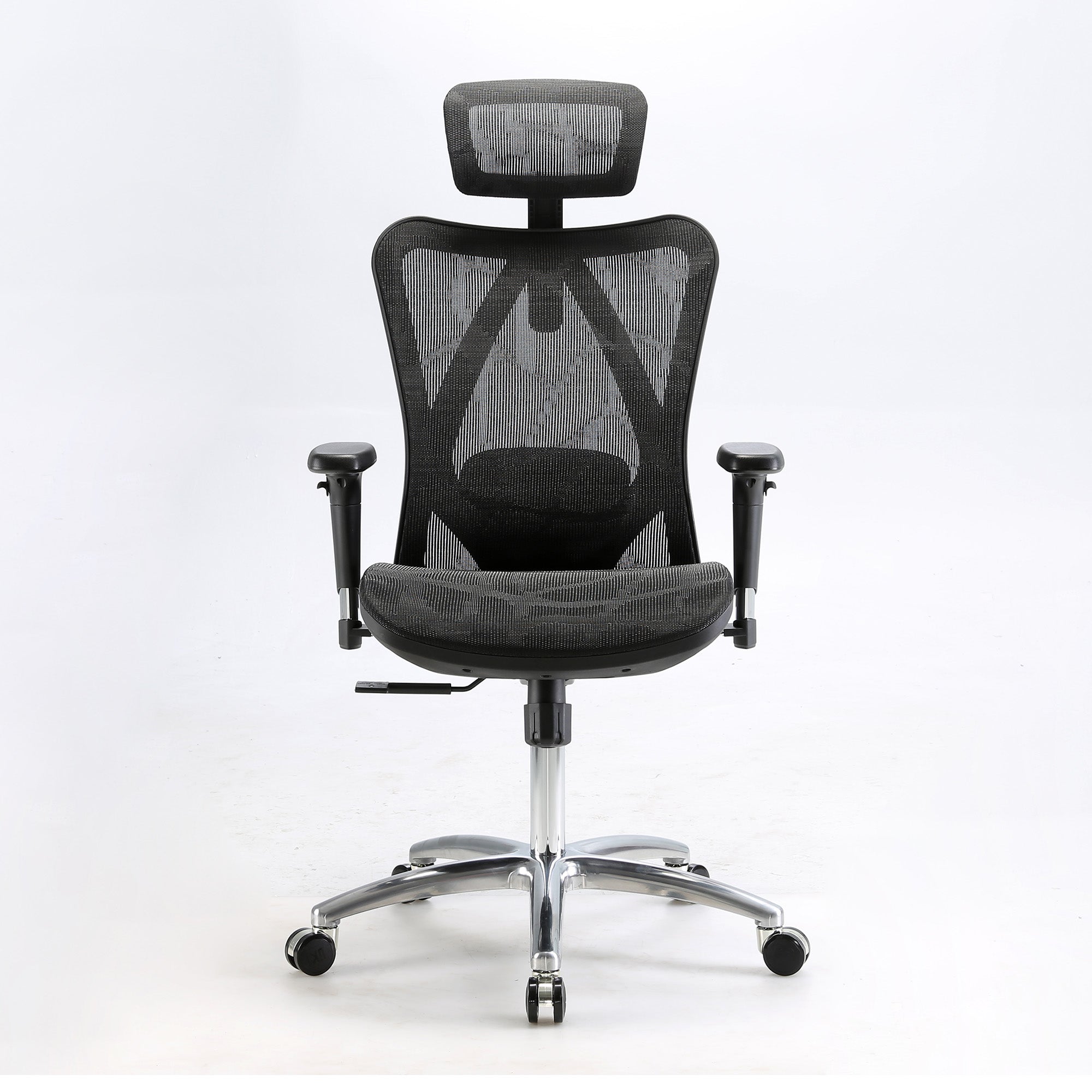
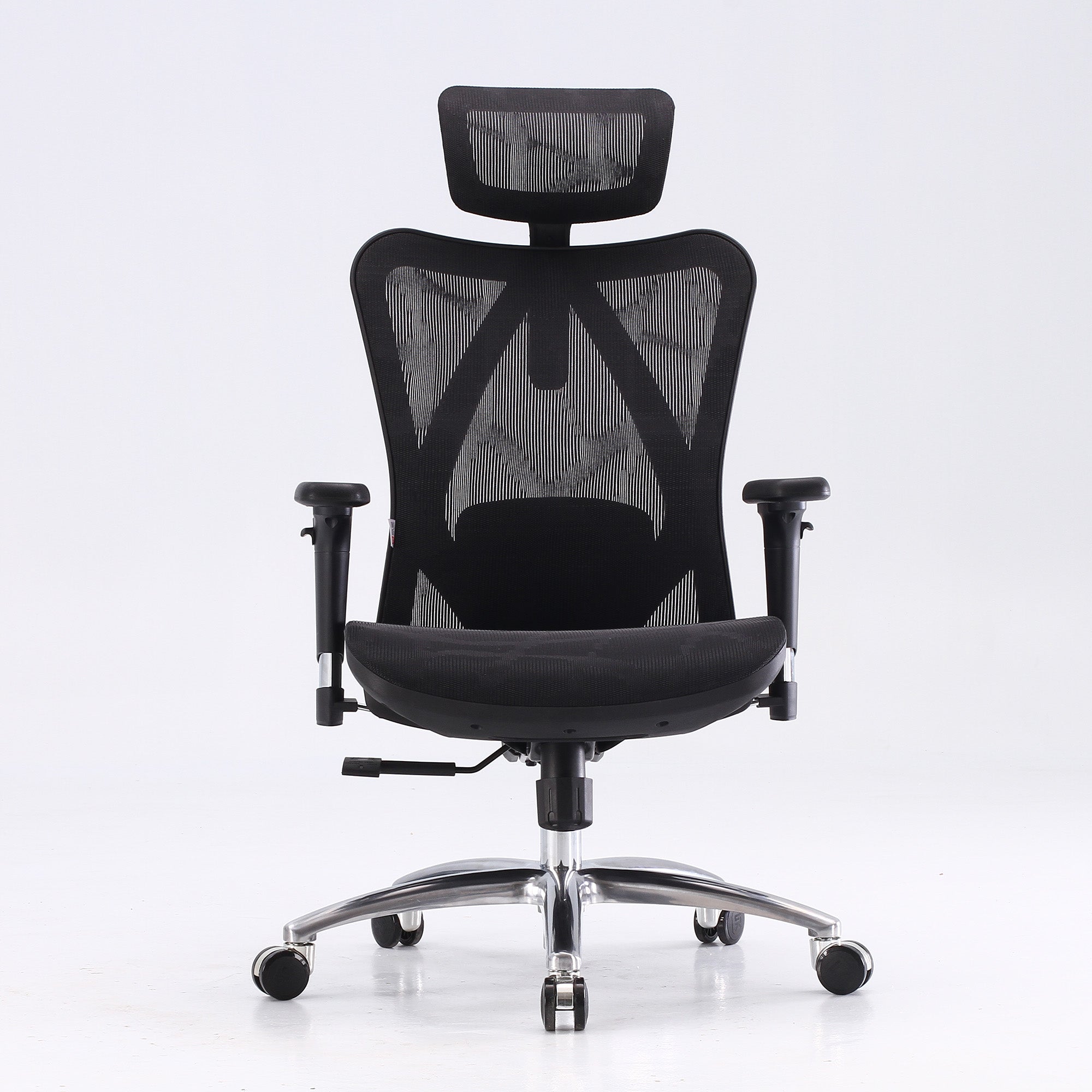
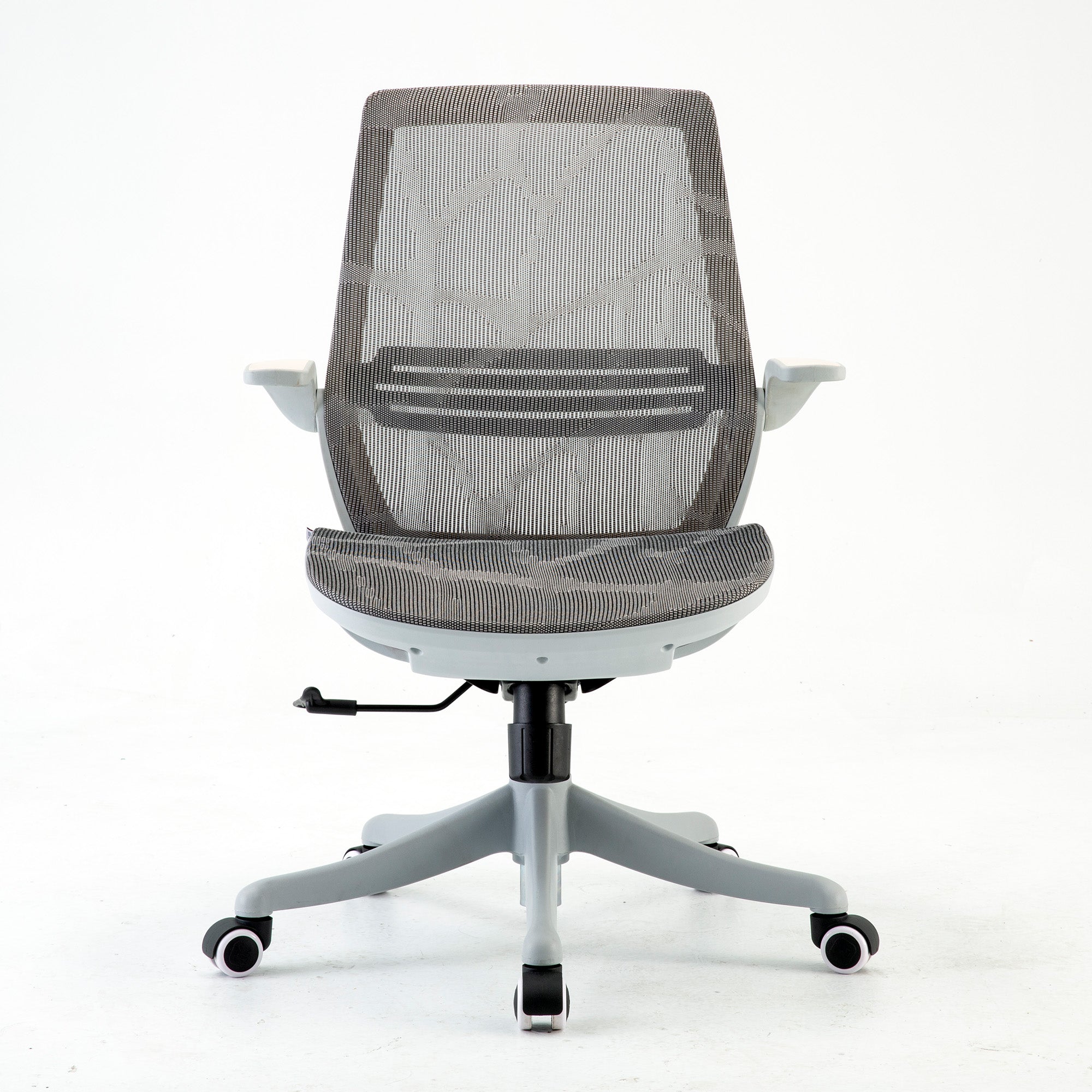
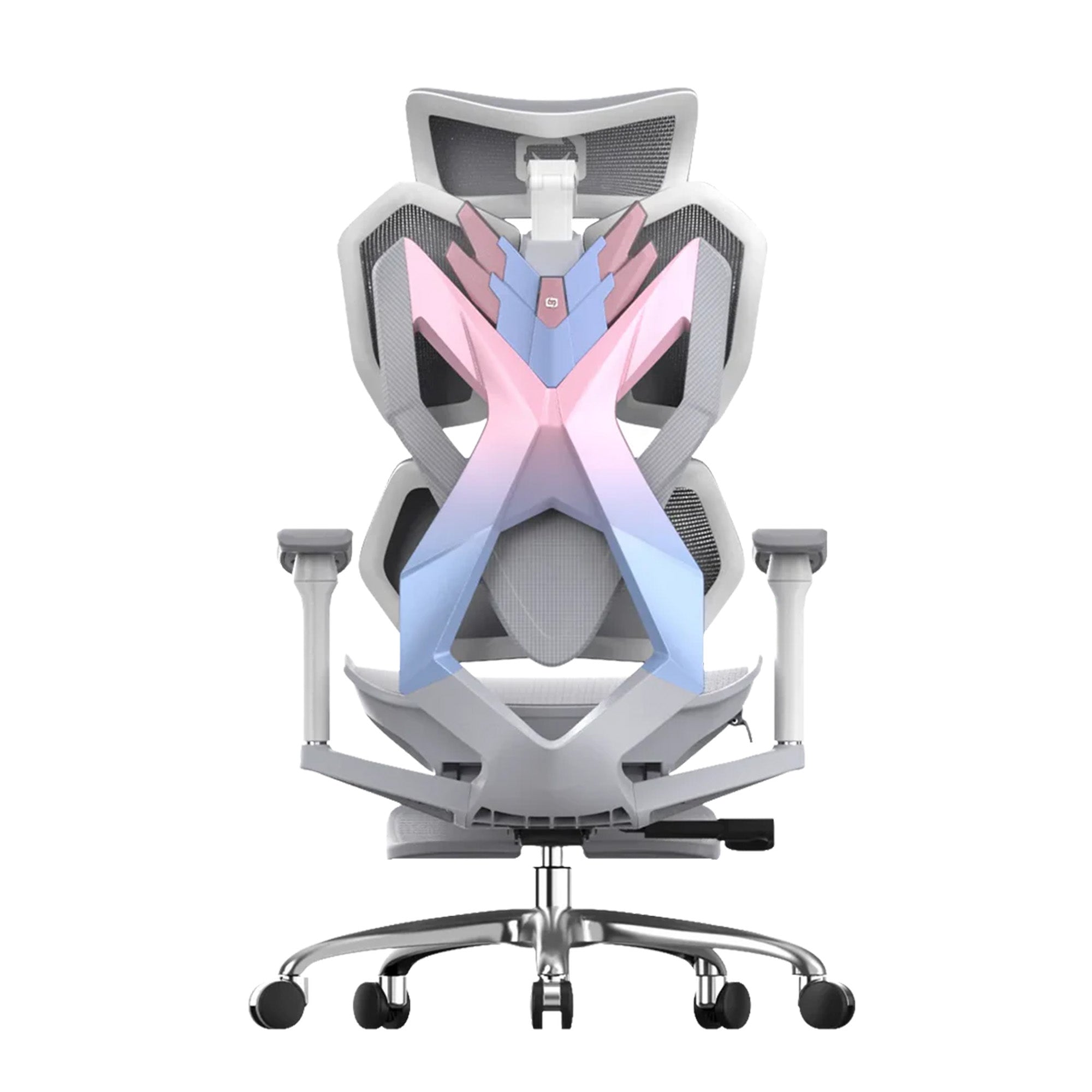
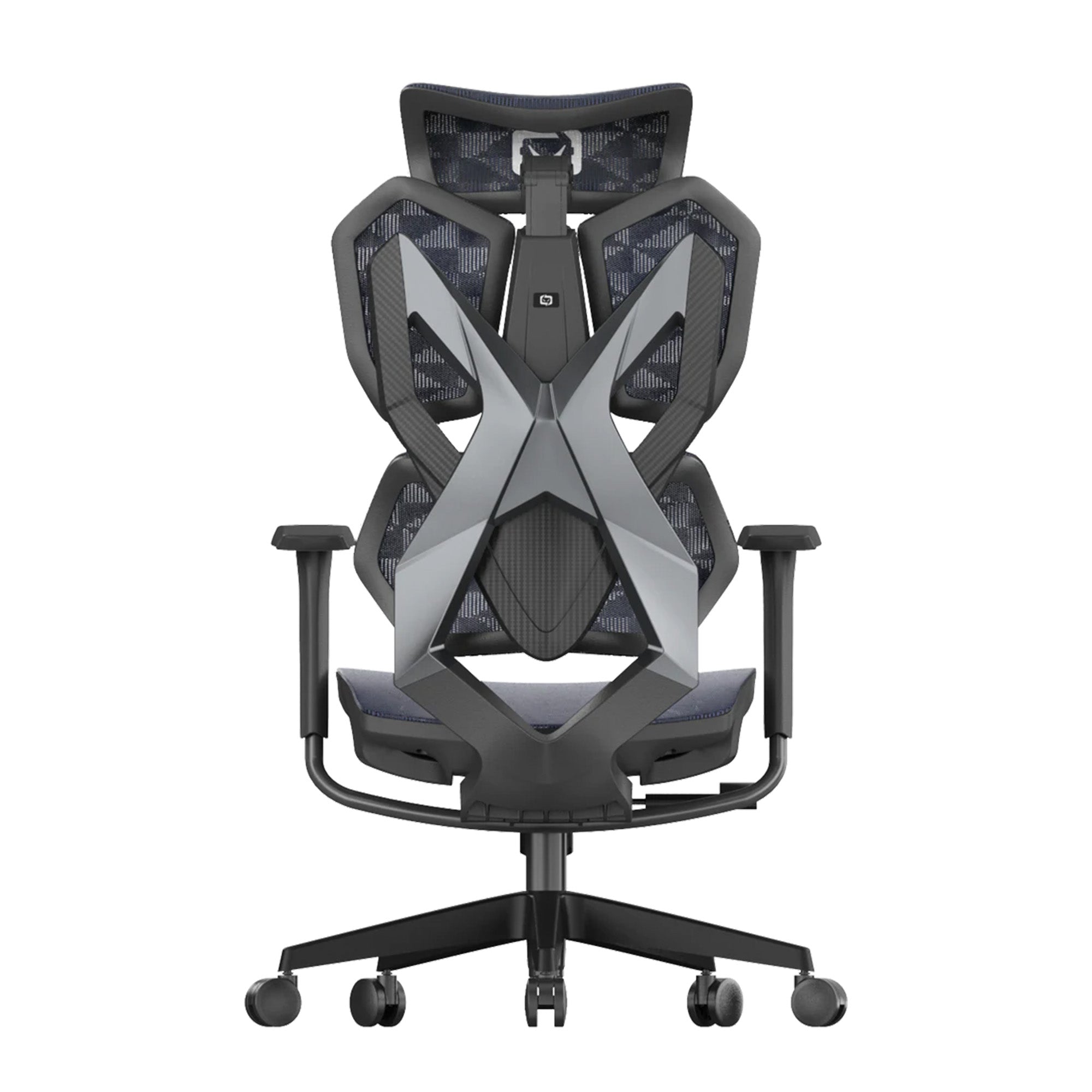
The chairs most commonly selected for business orders are the Sihoo M57 for standard desk roles, the Sihoo Vito M90 for employees who sit six or more hours per day and benefit from the adaptive lumbar system, and the Sihoo Doro C300 for senior roles or individuals with existing back concerns who need the higher level of adjustability and support the Doro series provides.
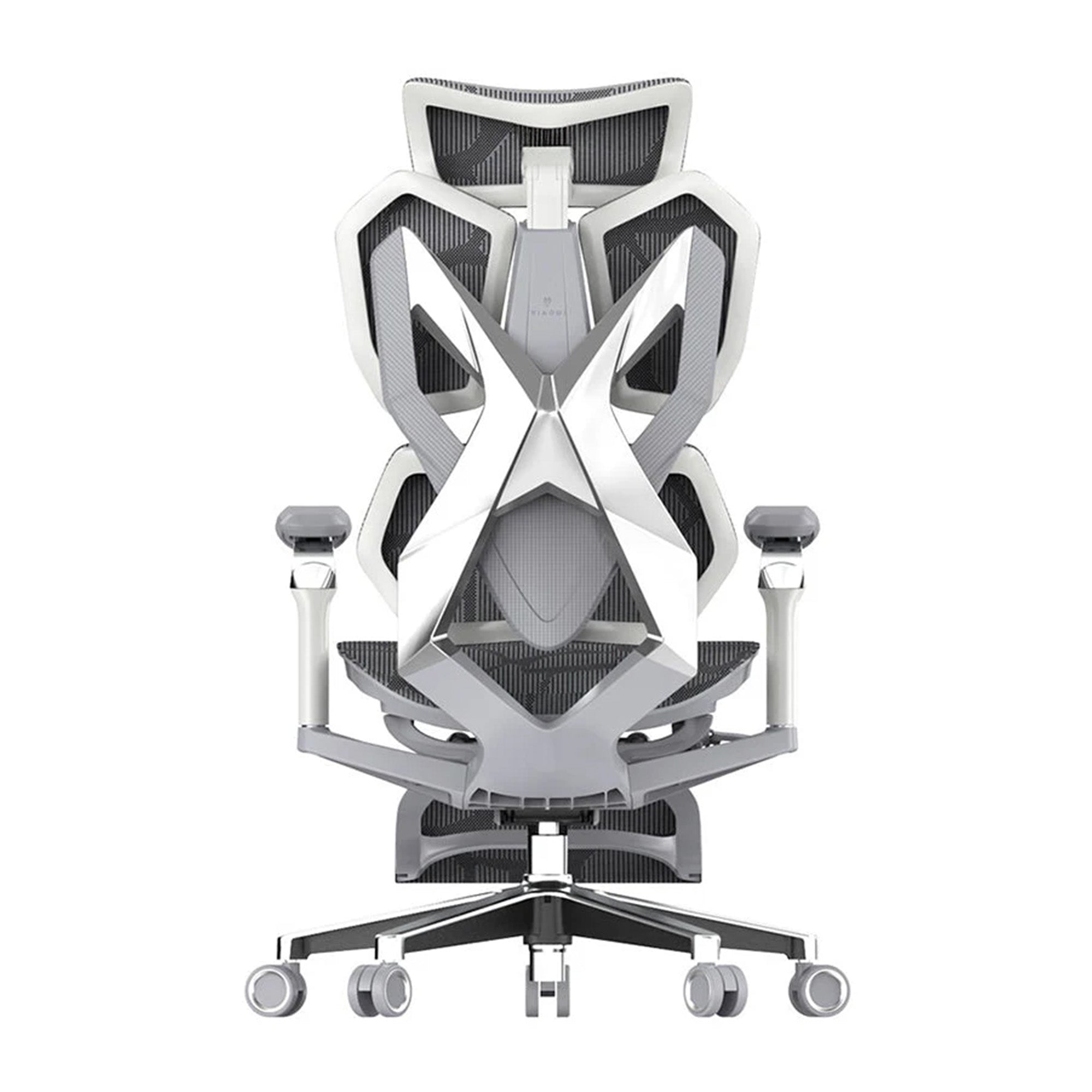
The Sihoo Doro C300 features a split backrest design and a Domino Stereoscopic Lumbar System that provides independent support to the lumbar and back separately, which makes it a strong option for employees who have already experienced back issues in a standard office chair. More detail on how this system works is covered in this breakdown of the Doro C300 lumbar system.
Sihoo Australia offers a commercial programme for businesses ordering chairs at volume, including bulk pricing and delivery support. Contact the team at support@sihoo.com.au or on 1300 002 580 to discuss requirements for your team.

After the Checklist: What to Do with the Results
Sort Findings into Three Categories
Once you have completed the review, sort every finding into one of three buckets based on what it requires to fix.
Immediate, no-cost fixes. Adjustments to existing equipment that can be made today. Chair height, lumbar position, armrest height, monitor distance, keyboard placement. These require nothing except the knowledge of what the correct setting looks like. Do these on the day of the review.
Low-cost accessory fixes. Items under $100 that address gaps the current equipment cannot cover. A footrest for a shorter employee at a fixed-height desk. A monitor riser or arm for a screen that is too low. A document holder for a data-entry role. A compact keyboard to bring the mouse closer. Order these within the week.
Equipment replacement or upgrades. Chairs that cannot be adjusted to fit the employee, desks at fixed heights that cannot accommodate the team, or environments needing structural changes. Prioritise these by injury risk, starting with workstations where employees are already reporting discomfort.
Prioritise by Risk, Not by Cost
It is tempting to fix the cheapest items first and defer the larger ones. The problem with this approach is that the most expensive fix is often the most important one. An employee sitting in a chair that cannot be adjusted to fit them is accumulating musculoskeletal stress every day the chair stays in place. The cost of a replacement chair is generally a fraction of the cost of a serious workers' compensation claim.
For context on what those claims cost Australian businesses, the guide to how ergonomics improves employee productivity covers the financial case in detail, including the average $65,000 cost per serious musculoskeletal claim.
Build a Review Schedule
A one-time review produces one-time improvements. An ongoing schedule sustains them. The practical minimum for most offices is an annual review of all workstations, plus a review triggered by any of the following: a new employee starting, an employee reporting discomfort, a workstation being moved or significantly changed, or any WHS incident related to a workstation.
New employee onboarding should include a brief workstation setup session as a standard step. Walking a new employee through their chair and monitor adjustments on their first week takes fifteen minutes and prevents months of accumulated discomfort from building on a setup that was never fitted to them.
Keep a Simple Record
Keep a record of each workstation review: the date, the employee, the findings, and the actions taken or planned. This serves two purposes. It gives you a baseline to compare against in future reviews. It also demonstrates due diligence under WHS obligations if a claim is ever investigated.
A shared spreadsheet or a simple form stored in a team folder is sufficient for most businesses. Larger organisations with formal WHS management systems should integrate workstation records into their existing safety documentation.
Conclusion
A well-run office ergonomics review is not a one-day project you complete and file away. It is the starting point for a workplace that stays comfortable, productive, and injury-free over time.
The businesses that see the best outcomes are not the ones that buy the most expensive chairs. They are the ones that set them up correctly, train their people to use the adjustments, and build a simple review schedule that keeps the setup current as the team changes.
Start with the chair. Work through the five sections in order. Fix what you can today at no cost, plan the low-cost accessory fixes for this week, and build the case for any equipment upgrades using the injury cost and productivity data covered in the checklist above.
Your team sits for most of the working day. The quality of that sitting shapes how they feel, how they focus, and how long they stay healthy in the role. Getting it right is one of the most practical investments a business can make.
Better Comfort Starts Now.
Sources Referenced
• WorkSafe WA: Office Ergonomics Guidelines — worksafe.wa.gov.au
• Safe Work Australia: Work Health and Safety Act 2011 — safeworkaustralia.gov.au
• Flinders University: Office Safety and Workstation Assessments, referencing AS/NZS 4438 — staff.flinders.edu.au
• Monash University: Office Ergonomics Guidelines v4.3, including 20-20-20 rule — monash.edu
• AusRehab: The Ultimate Ergonomic Self-Assessment Checklist — ausrehab.com
• JCU Australia: Ergonomic Workstation Self-Assessment WHS-PRO-CHK-002b — jcu.edu.au
• CCOHS: Office Ergonomics, Positioning the Monitor — ccohs.ca
• Mayo Clinic: Office Ergonomics, Your How-To Guide — mayoclinic.org
• Australian Standard AS/NZS 4438: Height-Adjustable Swivel Chairs
• Australian Standard AS/NZS 1680: Interior and Workplace Lighting
Frequently Asked Questions
Prioritise adjustability over appearance. The chair needs to accommodate the height range of your team, which in a typical Australian office spans approximately 155 to 195 centimetres. This means the seat height range, lumbar adjustment range, and ideally seat depth adjustment all need to be wide enough to cover that spread. Specify AS/NZS 4438 compliance as a minimum, and AFRDI Level 6 for chairs in high-rotation or shared environments.
For teams with mixed needs across different daily hours of use, a tiered approach works well: the Sihoo M57 as the standard workstation chair, the Vito M90 for roles involving longer daily sitting, and the Doro C300 for employees with back history or senior roles requiring a higher level of support. Sihoo's commercial team can assist with volume orders, delivery coordination, and fit-out planning.
Yes, and this is an area many organisations under-managed after the shift to hybrid and remote work. The WHS duty of care extends to home-based workers. Providing a self-assessment form for remote staff to complete and return to their manager is the minimum step. A video-call workstation walkthrough is a practical way to assess the home setup without a site visit. Organisations should also have a clear policy on supporting home office equipment upgrades where the current setup cannot meet basic ergonomic standards.
Treat it as a priority case rather than waiting for the next scheduled review. Arrange an immediate workstation review and make the adjustments or equipment changes identified. If the discomfort has been present for more than a few weeks, refer the employee to their GP or an occupational physiotherapist. File a WHS incident report even if the employee has not made a formal claim, as this creates a documented record of the issue and the organisation's response.
The Work Health and Safety Act 2011 requires employers to eliminate or minimise ergonomic risks so far as is reasonably practicable. For office environments where employees perform prolonged computer-based work, this means ensuring workstations are set up to support healthy posture and do not create an unreasonable risk of musculoskeletal injury. A documented assessment process is the standard way of demonstrating that obligation is being met. WorkSafe WA explicitly requires worker consultation as part of any workstation assessment.
For a single workstation, working through all five sections takes approximately 30 to 45 minutes including the conversation with the employee. For a team of 20, that is 10 to 15 hours of review time, which can be spread across several days. Many organisations run reviews in batches, covering a team or department at a time. An initial review addressing the most significant issues across an office of 30 people can often be completed in a single day.
Learn the five key adjustments and practise running through them quickly: seat height, lumbar position, armrest height, backrest angle, and seat depth where available. With practice, this takes under two minutes. Arrive at your desk a few minutes before you need to start and run through them before sitting down. A consistent pre-work setup routine makes hot-desking significantly more ergonomic without any additional equipment investment.
A genuinely ergonomic chair should allow you to independently adjust seat height, lumbar support position, armrest height, and backrest angle. Those four are the functional minimum. A chair labelled ergonomic but offering only seat height adjustment is not ergonomic in any meaningful sense. AS/NZS 4438 is the relevant Australian standard to ask a supplier about before purchasing.
Start with the chair, specifically the seat height and lumbar support position. Sit back fully into the chair and check that your feet are flat on the floor with knees at 90 degrees. Then check that the lumbar support is contacting your lower back in its natural inward curve, not in the mid or upper back. These two adjustments address the most common causes of end-of-day lower back pain in desk workers. If neither adjustment helps within a week, move on to monitor height and keyboard distance.
Yes. Work through the five sections above in order, starting with the chair. The main limitation of a self-assessment is that it can be difficult to observe your own posture objectively. If a colleague can briefly watch you sitting in your normal working position before you start adjusting, they will often spot things you would miss. Taking a photo of your workstation from the side is another useful way to see angles and heights that are hard to judge from the seated position.
Shop products from this article


Save up to 49% this Click Frenzy Sale. Pay in 4 interest-free instalments with Afterpay.
SHOP NOWRecommended Posts


